Holobuild docs Building
Building layer by layer
Layers, the buttons, the side panel, and what happens when it's done.
Layers
You build one layer at a time, from the bottom up. When a layer's done, its edge flashes green, a chime plays, and the next layer appears.
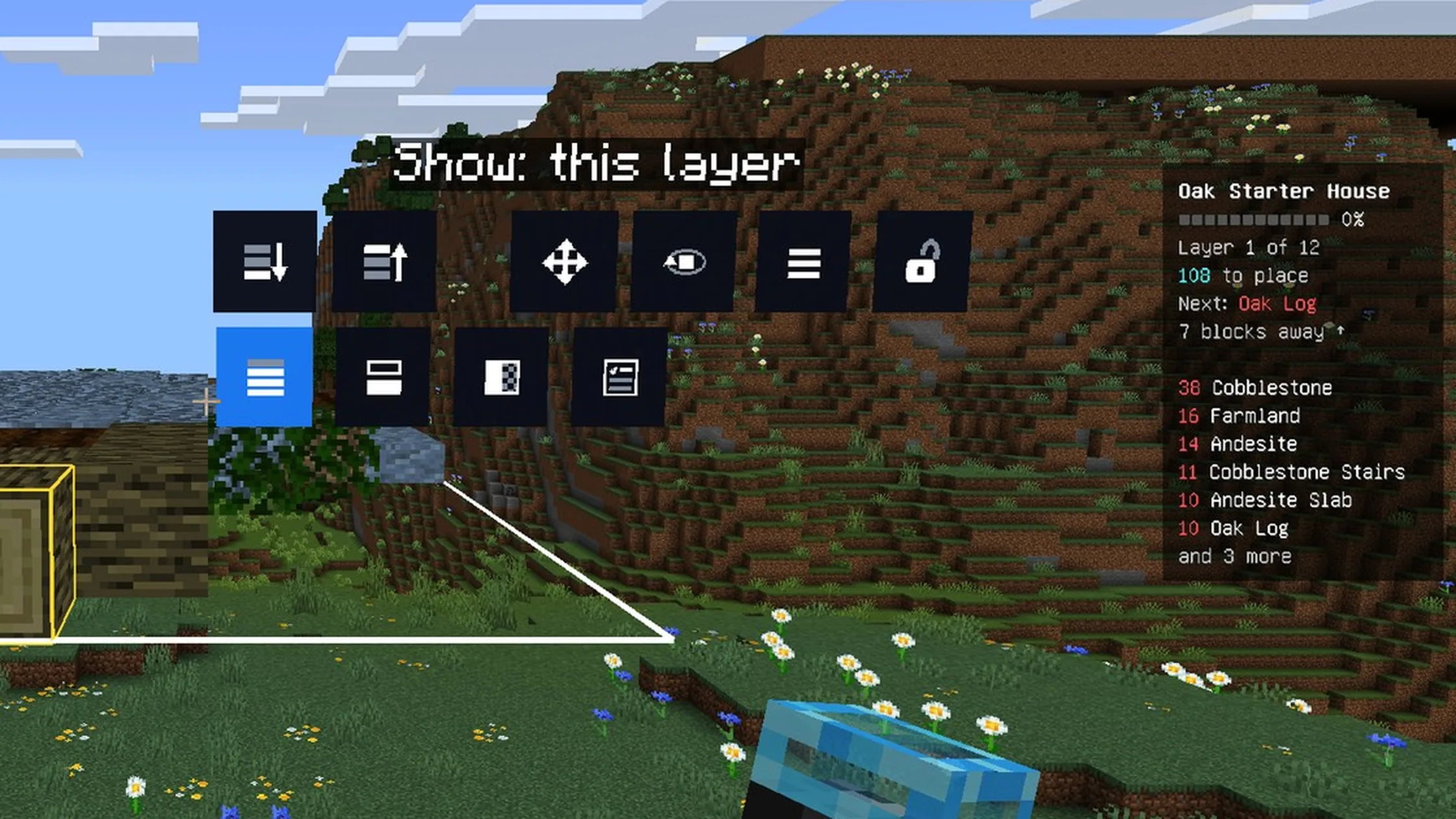
The buttons next to the build
Punch a button to use it, or look at it and use the Holo Wand. Look at one and the line above it says what it does. On a phone, see On a phone.
The top row:
- Layer down and Layer up: change the layer you're working on.
- Move: move, turn or mirror the build. See Moving a build you've started.
- Fly round it: the camera circles the build. Tap sneak to come back.
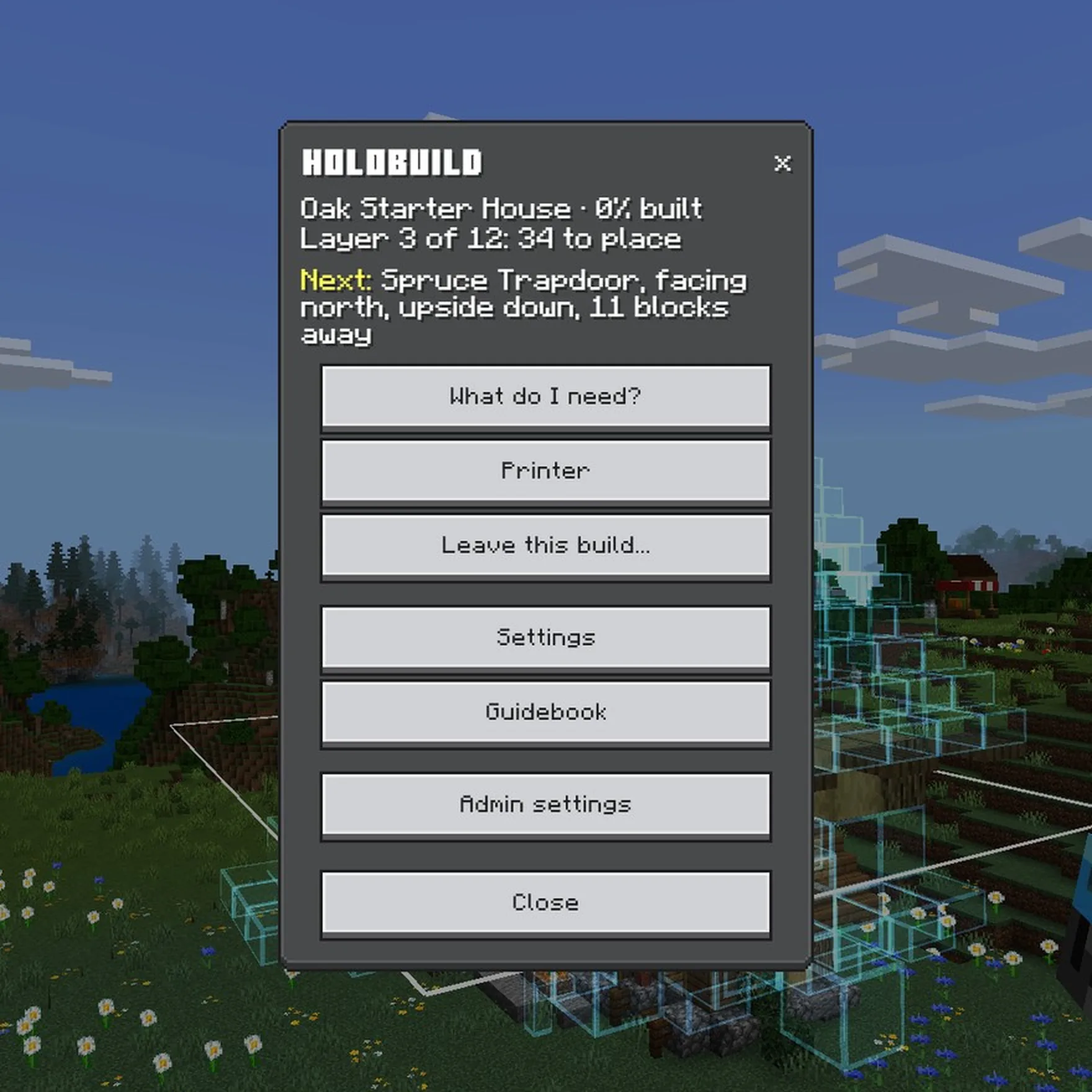
- Menu: opens Holobuild's menu.
- The padlock: keeps the buttons where they are instead of following you. Punch it again to let them follow.
The bottom row changes what you see. Each punch moves on to the next choice:
- Show: this layer, this layer and the one below, every layer up to this one, or the whole build.
- Other layers: a blue outline, or solid blocks.
- Opacity: how solid your layer's ghosts look (100%, 70% or 40%).
- List at the side: the side panel on or off.
Show and Other layers are only there on builds more than one layer high.
On a phone
On a phone, the buttons go by the middle of your screen, not where your finger taps. So turn until the button is in the middle of your screen, then:
- Usual touch controls: tap the ground, or any block, with the Holo Wand. Tapping the sky does nothing.
- Split controls (Settings > Touch, which gives you a crosshair): use the Holo Wand. It works from any distance.
On every device, using the Holo Wand while you look at a button presses it. Look at no button and it opens the menu, as usual. Holobuild also tells phone players this in chat, once each time they play.
The side panel
The panel at the side of your screen shows how much is built, your layer, how many blocks are left, and the next block and how far away it is. Below that are the blocks your layer needs, each turning green when you have enough.
Turn it off or on with the list button beside the build.
Problems
When a block is wrong, the menu shows Problems: every wrong block, block facing the wrong way and extra block, in words, nearest first. Choose one and the camera flies to it, then brings you back facing it. If the problems are on different layers, pick a layer from the list.
Finishing
Place the last block and the build celebrates: a ring of light, sparkles and stars. Everyone who helped is named, with how many blocks they placed.
Stopping part way
Choose Leave this build on the menu:
- Leave it for now: the ghosts go, and the build waits for you, or anyone, to carry it on. It waits through restarts too.
- Remove it for everyone: stops it. What's built stays, and so does the blueprint.
Haven't got Holobuild yet? It's free on CurseForge, for single player, servers and Realms.
Get Holobuild