Holobuild docs Blueprints
Saving a build
Two corners with the wand, a box that fits itself, and a name.
Marking the corners
- Open the menu and choose Save a build.
- Use the wand on a block at one corner of your build.
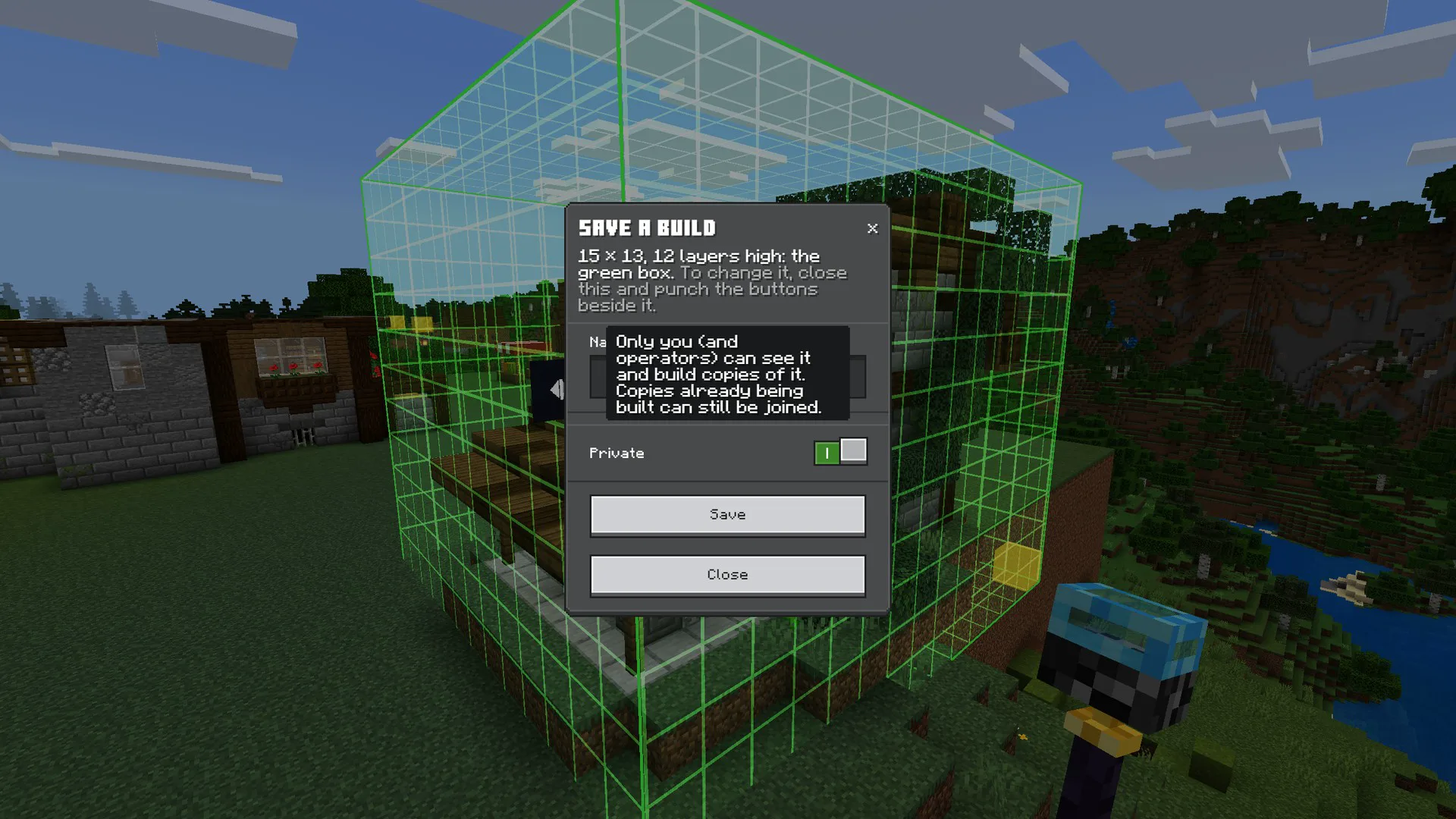
- Look at the opposite corner and use the wand on it. Glowing walls show the box as you look round.
- Both corners can be on the ground: the box finds how tall the build is by itself. It stops at the first layer with nothing in it.
- Mark a top corner instead, on the roof, and the box goes at least that high.
- Marked the wrong block? Choose Mark the first corner again on the menu.
Fitting the box
Buttons appear next to the box. Punch one to move that side of the box one block, the way its arrow points. Look at a button and the line above it says what it does.
- If the ground under your build is left out, the bottom arrows add it.
- The buttons follow you as you walk round. Punch the padlock to keep them where they are, and again to let them follow.
- You can also look at a button and use the Holo Wand. On a phone that's the way to do it: see On a phone.
Naming and saving
- Punch the green tick.
- Type a name: up to 32 letters, numbers and spaces.
- To keep it to yourself, turn on Private (see Private blueprints).
- Choose Save. A scan of light and a burst of stars mark it saved.
How big
- A blueprint can be up to 64 blocks wide, 64 long and 64 tall. That's the biggest Minecraft itself can save in one piece.
- A world keeps up to 40 blueprints.
- Stay near your build while you save it, so all of it is loaded.
Haven't got Holobuild yet? It's free on CurseForge, for single player, servers and Realms.
Get Holobuild